Getting started
From nothing to your first note
No IT skills needed. If you can send a text, you can do this. Here's exactly what happens, start to finish — about ten minutes, and most of it is once-only setup.
Choose what your firm does
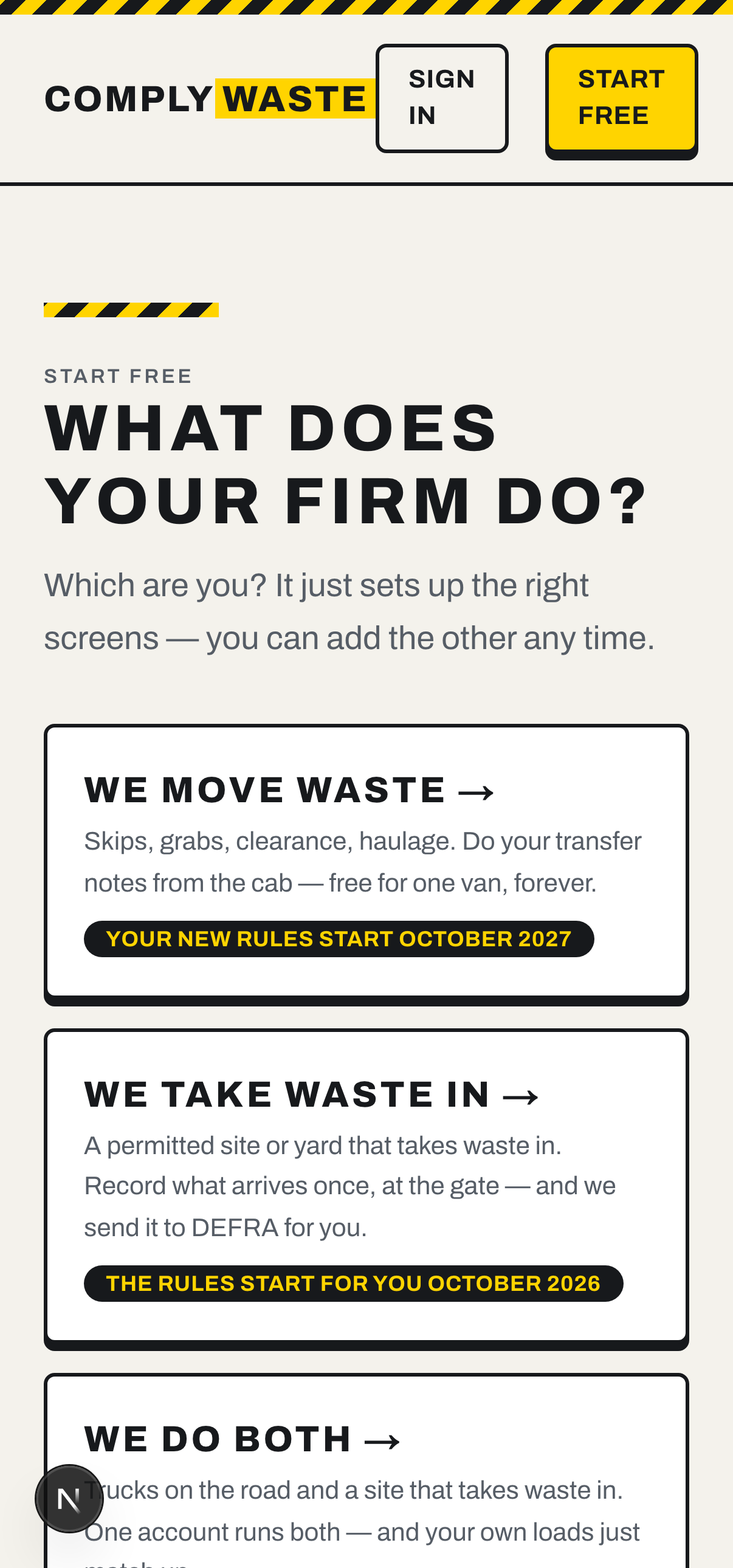
Go to Start free and tap “We move waste” — that's skips, grabs, clearance and haulage.
Running a permitted site that takes waste in as well? Pick “We do both” instead.
Get your one-tap sign-in link
Type your work email and we'll send you a link. There's no password to remember — you tap the link in the email and you're in. That same link is how you sign in from now on.
Can't see the email? Give it a minute, then check your junk folder.
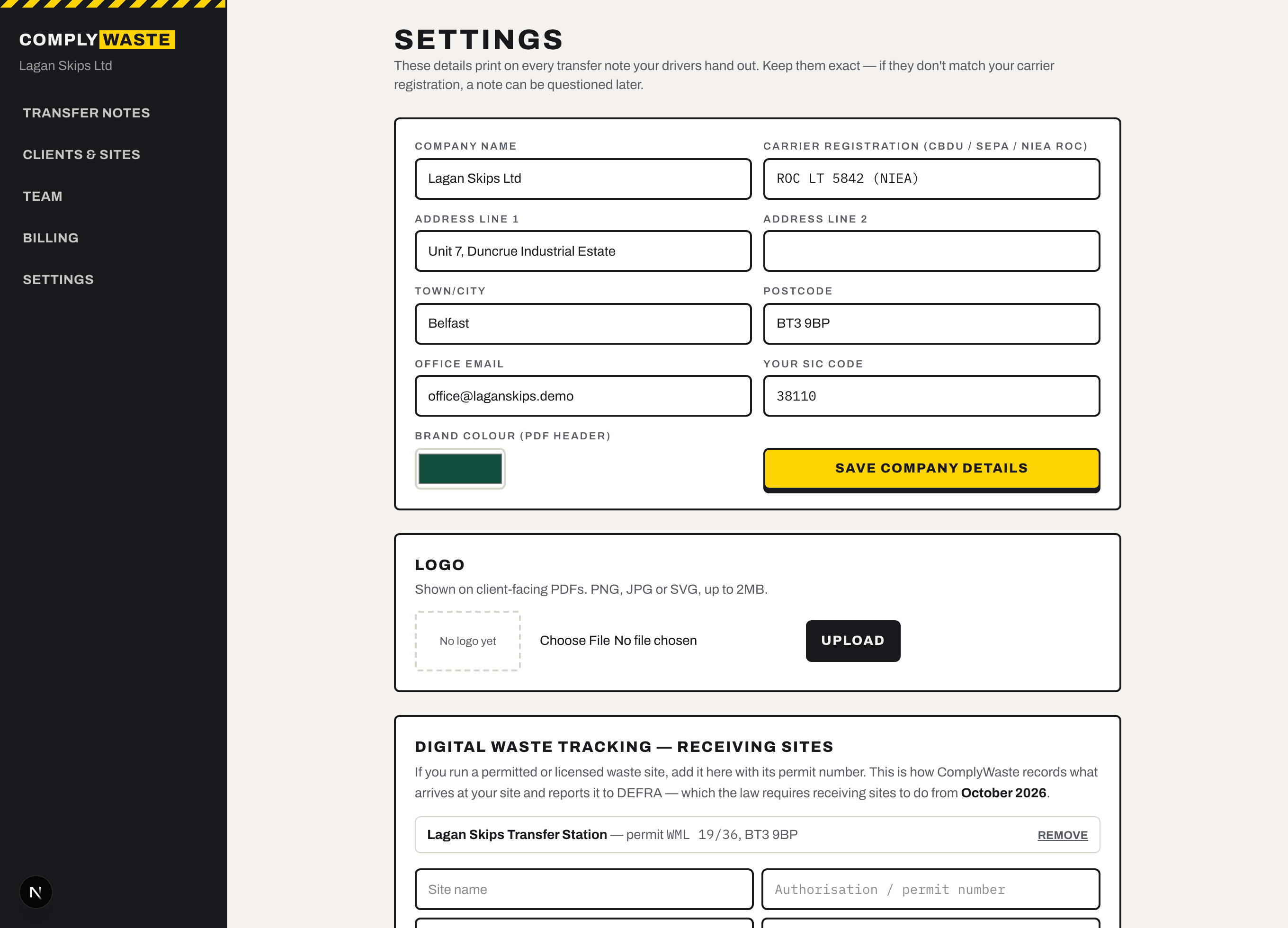
Enter your company details
These print on every transfer note your customer gets, so enter them exactly as they appear on your waste carrier registration (your licence to carry waste, from the Environment Agency, SEPA, NRW or NIEA).
You only do this once. You can change it any time in Settings.
You land on your dashboard
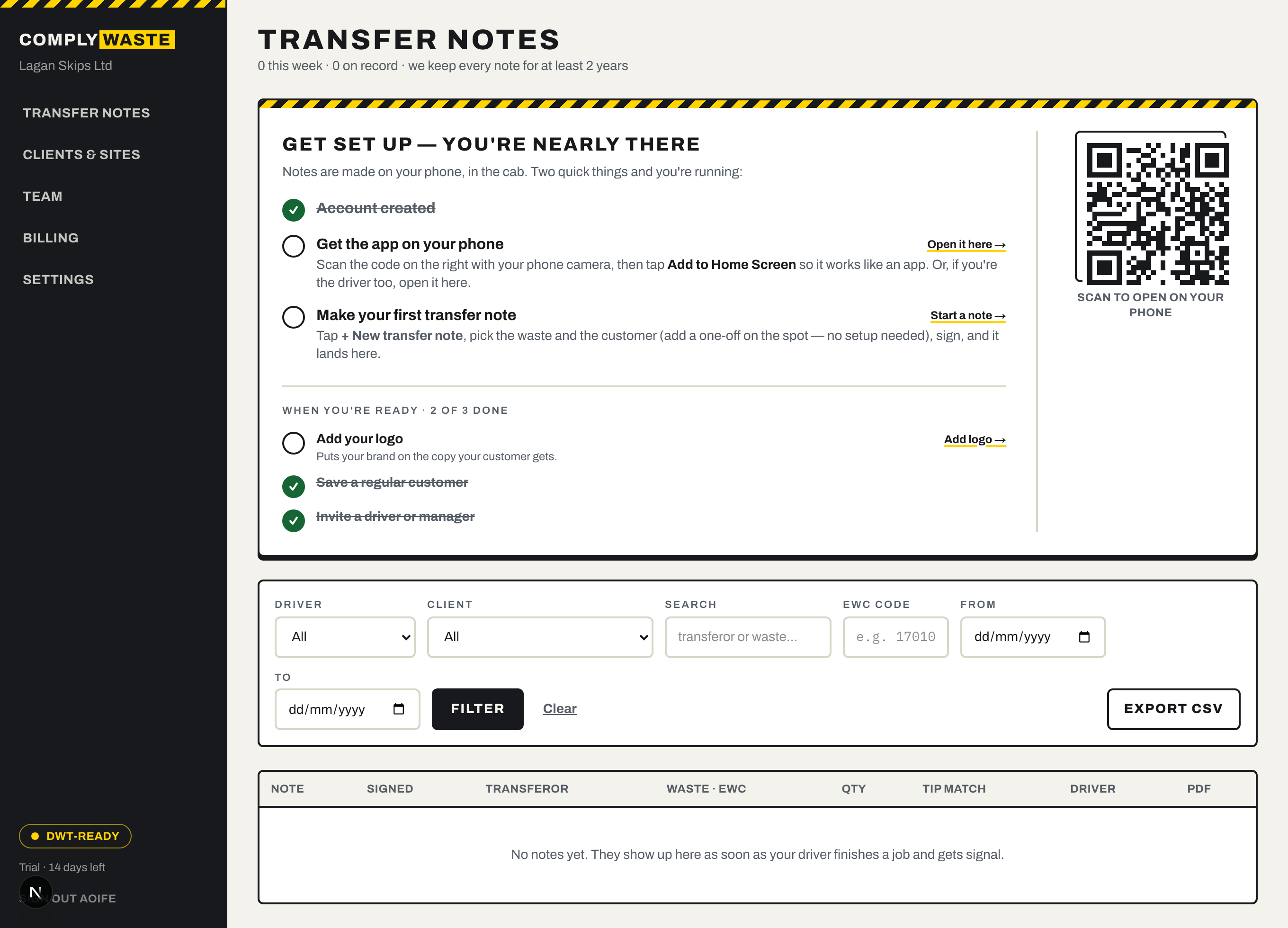
This is your office view — every note your drivers make shows up here. To start, you'll see a “Get set up” checklist that walks you through the last couple of steps.
The big one: getting the app onto a phone, because that's where notes are made.
Get the app on your phone
On the dashboard, point your phone camera at the code — it opens the app. Then tap Add to Home Screen so it sits with your other apps. No App Store, nothing to download.
Are you the driver as well as the office? That's fine — it's the same app, just open it on your own phone.
Make your first note
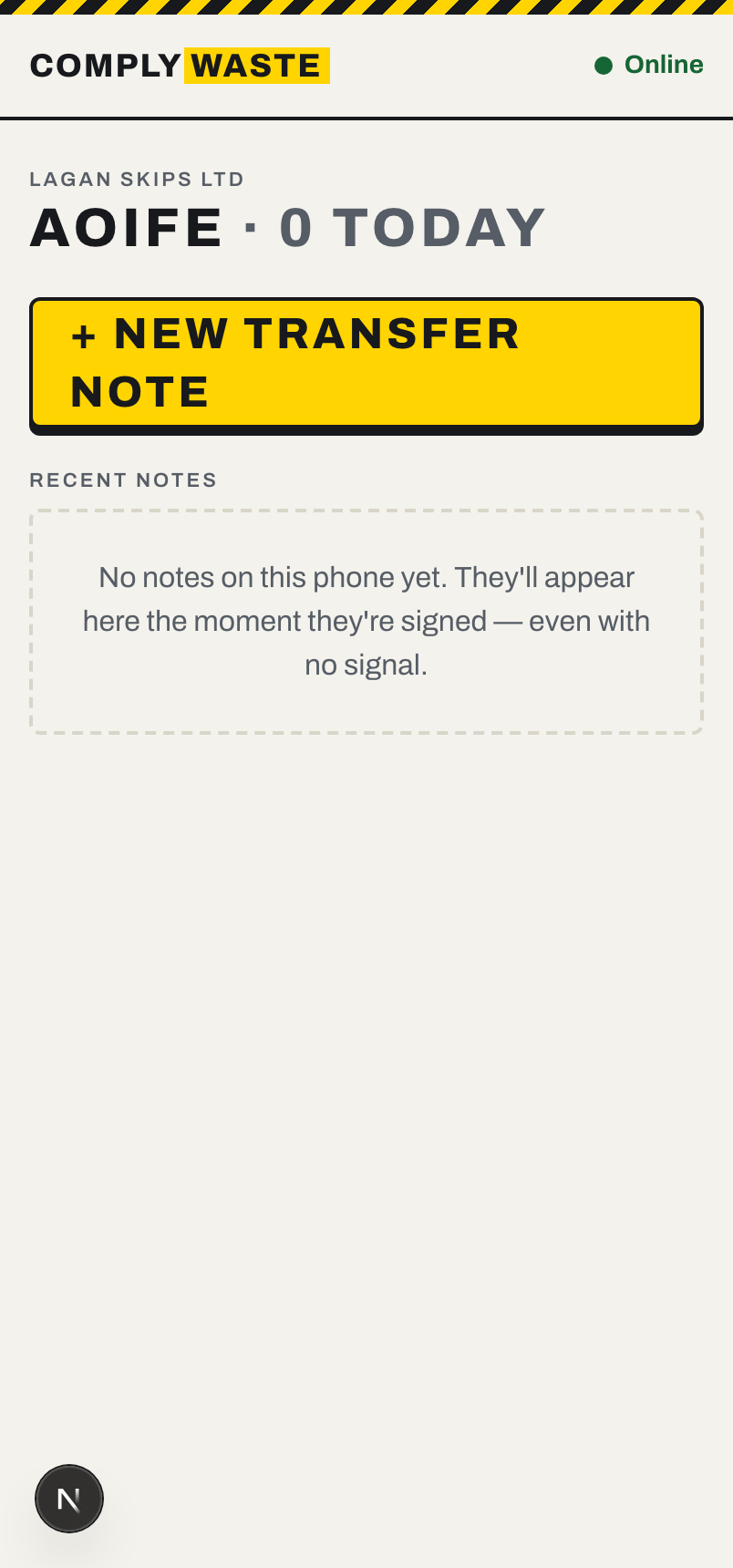
On the phone, tap + New transfer note and answer the questions:
- Who's the waste from? Pick a saved customer, or add a one-off on the spot — no setup needed.
- What's in the load? Type what it is (“rubble”, “plasterboard”) and we find the right waste code.
- How much, and how's it contained? Tap the amount and the skip size.
- Sign. The customer signs on the screen, then you do.
That's it — the note's done and it appears on your office dashboard, ready to hand over (on a paid plan, your customer also gets a tidy copy by email). No signal? It still works and syncs itself when you're back in range.
When you're ready — none of this is required
Ready? It's free for one van.
Start freeStuck on anything? See the how-to guides →