How to
How to do the everyday things
Short, plain guides for the jobs you'll actually do — whichever side of the waste movement you're on. New here? Start with the full walkthrough on Getting Started.
For permitted sites
If you take waste in
Record each load as it arrives and let ComplyWaste file it to DEFRA within the two-working-day window.
Log a load at the gate
Receipts are recorded on the dashboard (or a site tablet) as loads arrive:
- 1Go to Waste receipts and tap + New receipt.
- 2Who brought it? Enter the carrier and their registration number.
- 3What's in the load? Type what it is — we find the EWC code — and enter the weight.
- 4Save. It's checked against DEFRA's own rules and stored in their exact format, so nothing bounces.
On a paid plan it files to DEFRA automatically, there and then — inside the 2-working-day window, with nothing to remember.
Connect your site to DEFRA
A one-off setup so your receipts can reach DEFRA:
- 1In Settings → Digital Waste Tracking, add your receiving site and its permit details.
- 2Enter your DEFRA API code — DEFRA issues this when you register for the service.
- 3We check the connection and save it against that site, so nothing ever files against an unlinked one.
You'll need a DEFRA Digital Waste Tracking account — DEFRA charges £26/year per organisation, separate from ComplyWaste. See the live position at dwt-status.
Turn on automatic DEFRA filing
Capturing loads is free and stores everything DEFRA-ready. To have them filed for you:
- 1In Billing, choose Site (one site) or Group (all your sites).
- 2From then on, every receipt you log submits to DEFRA automatically — no portal, no typing it twice.
Check or correct a submission
Every receipt shows where it stands with DEFRA:
- 1On Waste receipts, each load shows its status and DEFRA tracking ID.
- 2Anything that didn't go through surfaces for a one-tap retry — nothing fails silently.
- 3Need to fix a load? Edit it and the correction files to DEFRA too.
For carriers
If you move waste
Fill in a waste transfer note from the cab in under a minute, even with no signal.
Make a transfer note
Notes are made on the phone app, out on the job:
- 1Open the app and tap + New transfer note.
- 2Who's the waste from? Pick a saved customer, or tap one-off customer and type their name and address.
- 3What's in the load? Type what it is (“rubble”, “muckaway”) — we find the waste code.
- 4How much & how's it contained? Tap the amount and skip size.
- 5Sign. The customer signs, then you sign.
Done. It lands on your office dashboard, ready to hand over. Works with no signal — it syncs itself later. On a paid plan, your customer gets a copy by email automatically.
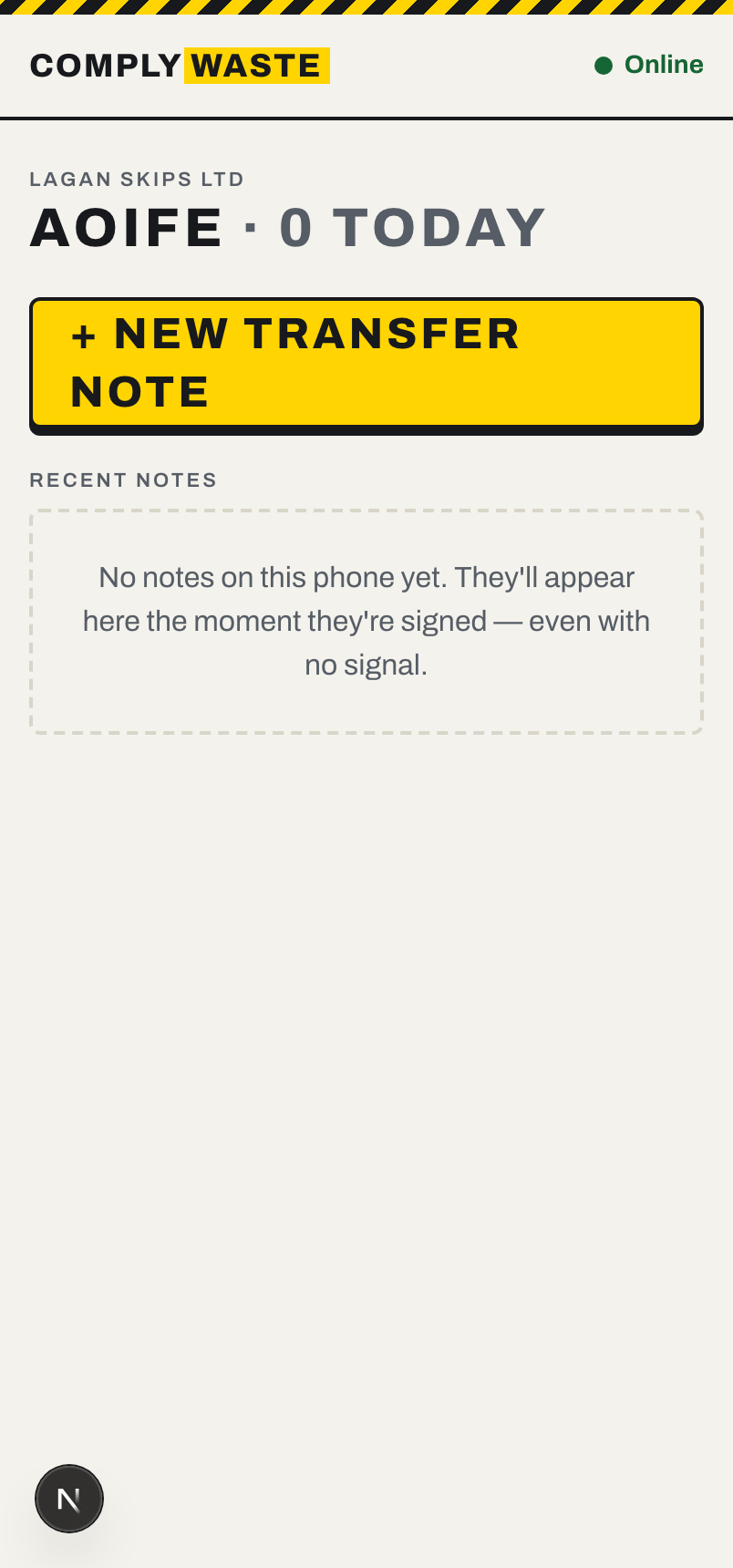
Get the app on your phone
There's nothing to download from an App Store. On your phone:
- 1Open complywaste.co.uk in your browser (or scan the code on your dashboard).
- 2Sign in with the link we email you.
- 3Tap your browser's share button, then Add to Home Screen.
Now it sits with your other apps and opens full-screen, just like one.
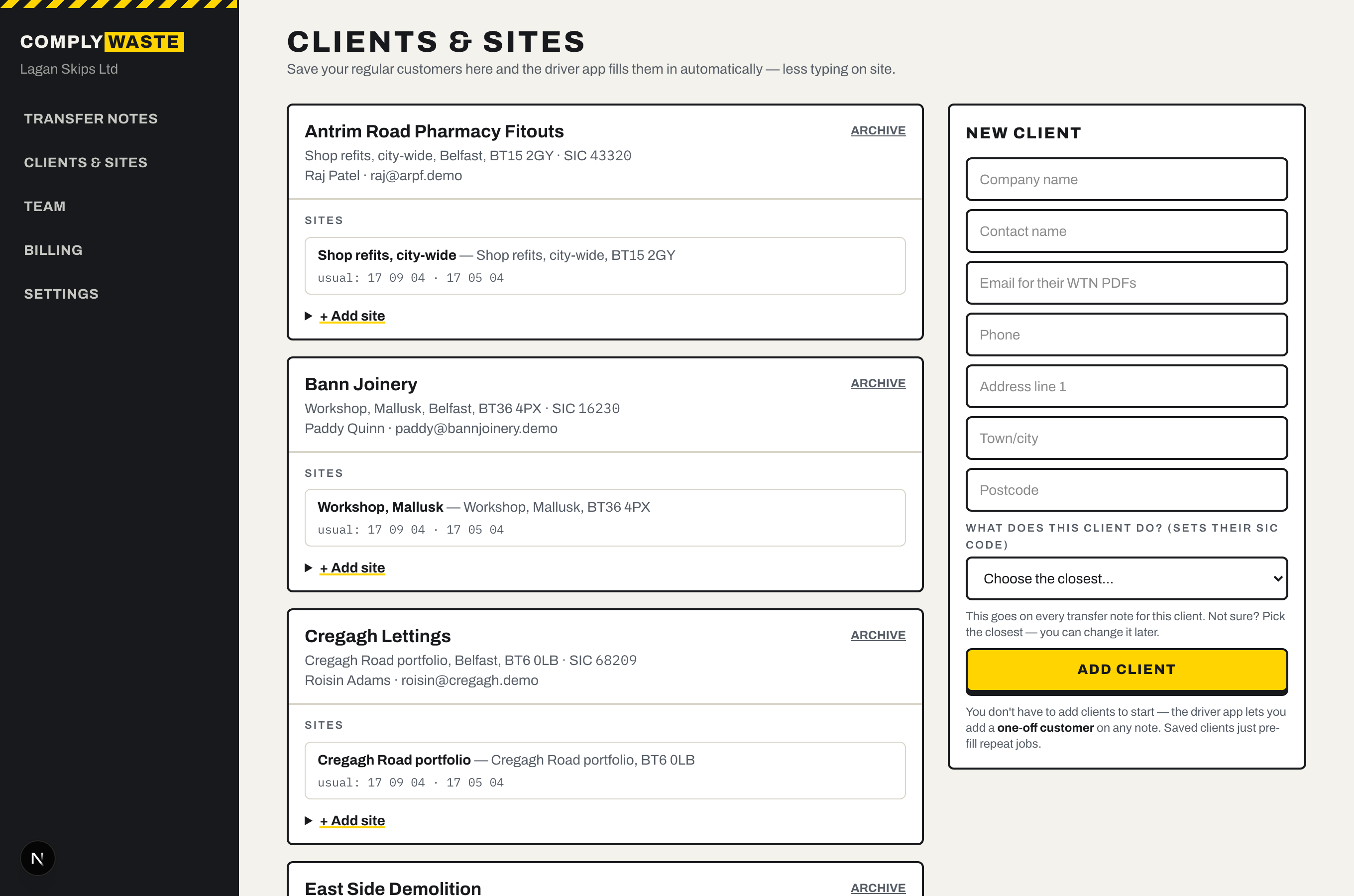
Save a regular customer
You don't have to — the app lets you add a one-off customer on any note. But saving your regulars means their details fill in automatically next time.
- 1On the dashboard, go to Clients & sites.
- 2Fill in their name and address in the “New client” box.
- 3For “What does this client do?”, pick the closest — it sets their code for you. Not sure? Any close match is fine; you can change it later.
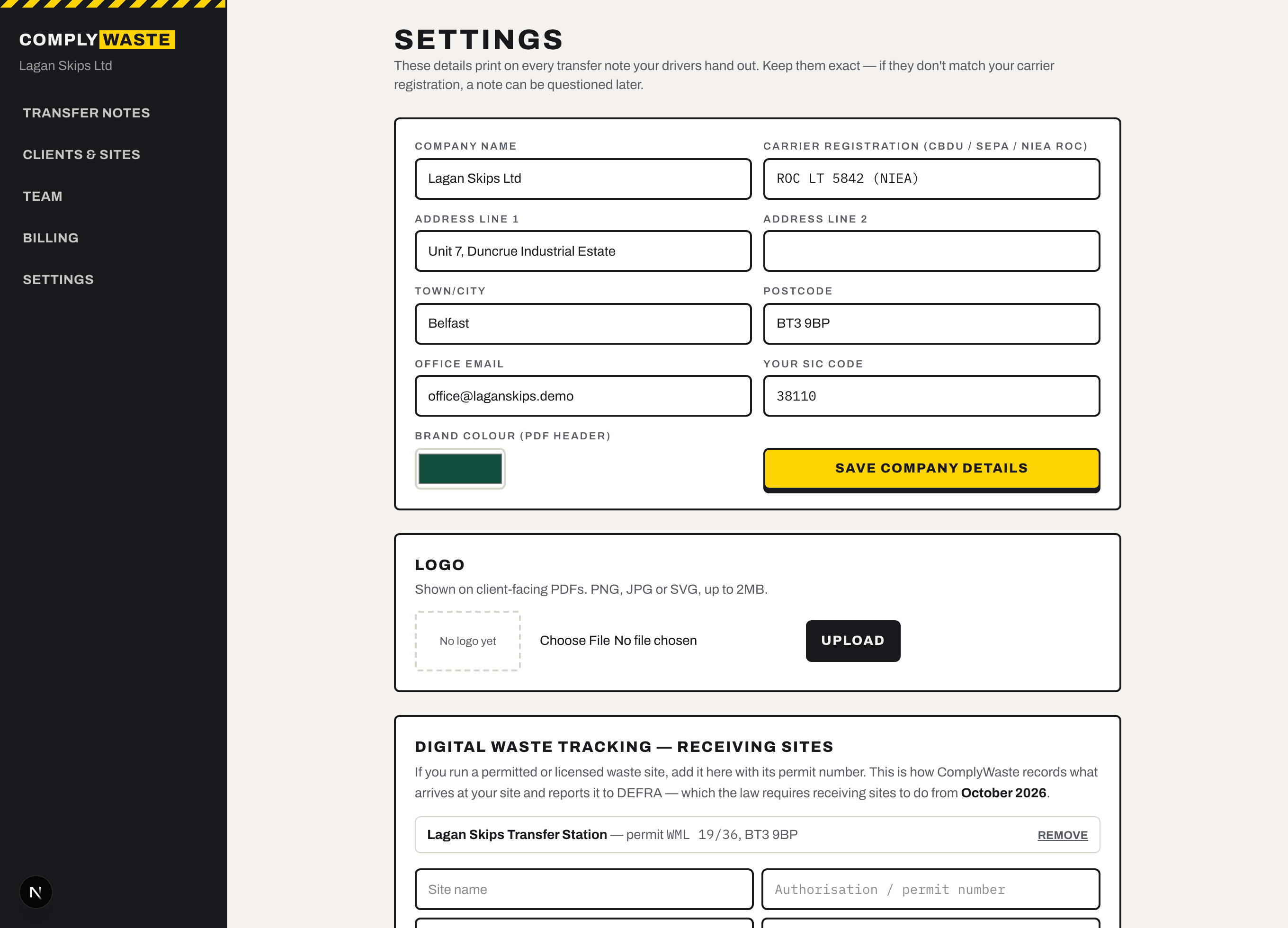
Add your logo & company details
Your logo goes on the copy your customer receives, so it looks like your paperwork.
- 1Go to Settings.
- 2Check your company name, address and carrier registration are exactly right — they print on every note.
- 3Under Logo, upload a PNG or JPG.
Branded copies are part of the Solo plan and up.
Invite a driver or manager
Adding your drivers means each one signs notes under their own name.
- 1On the dashboard, go to Team.
- 2Enter their name and email, and choose Driver (the phone app) or Manager (this dashboard).
- 3They get an email, sign in — no password — and they're on.
Extra drivers are part of the Crew plan and up.
New here? Start free and follow along.
Start freePrefer the full walkthrough? Getting started, step by step →